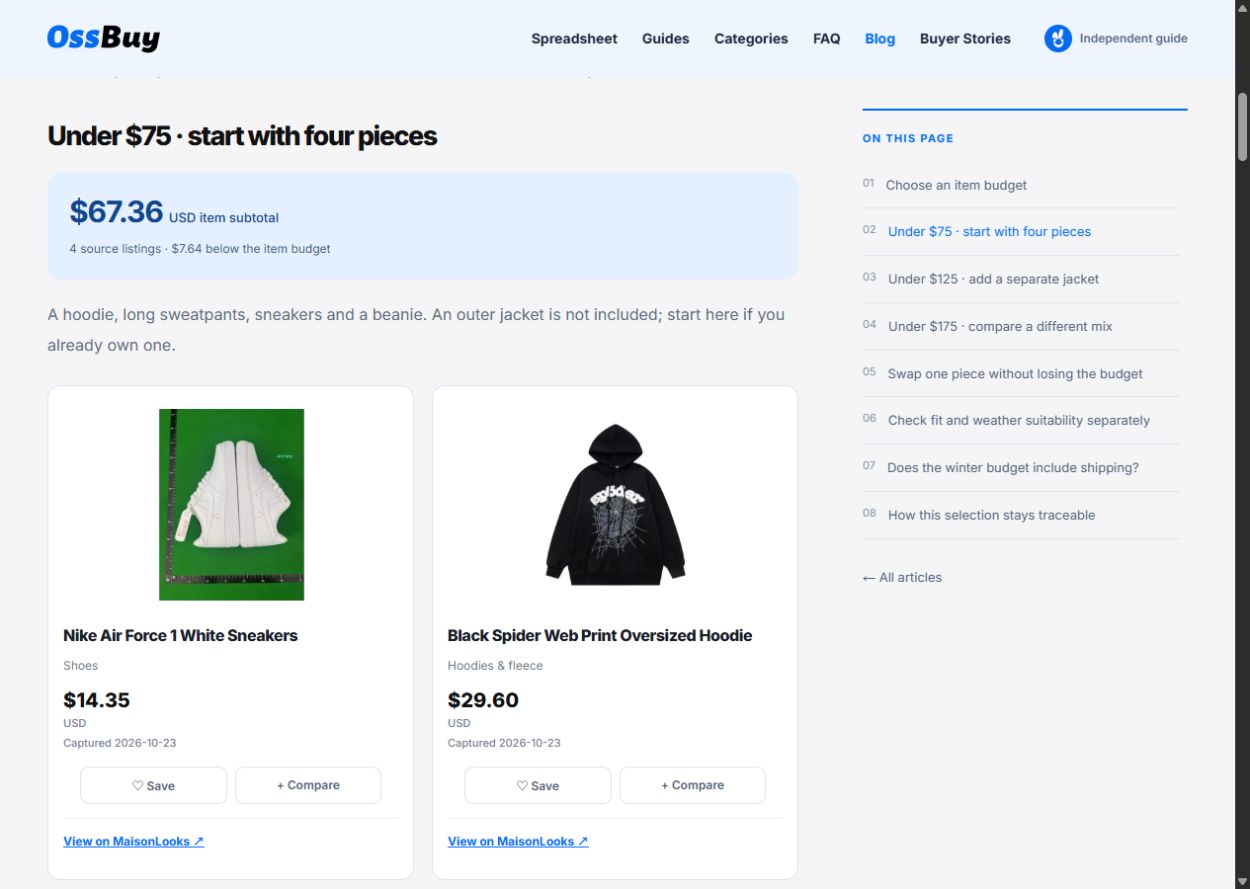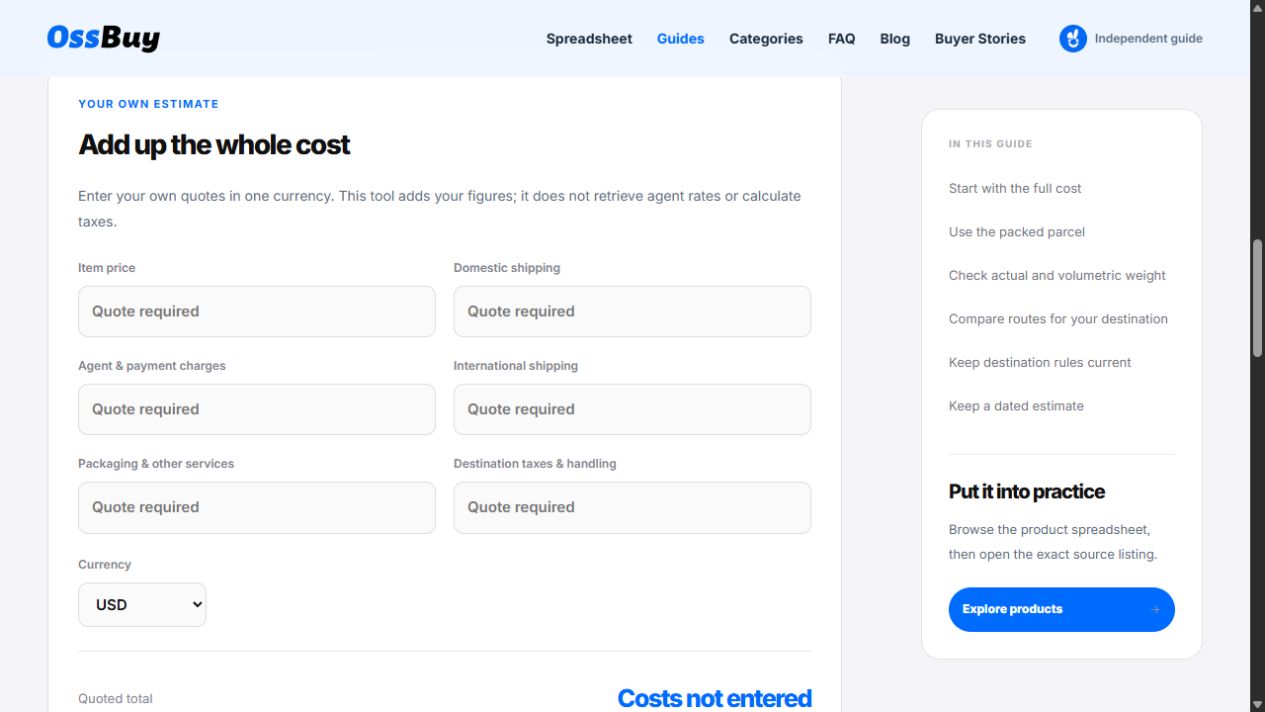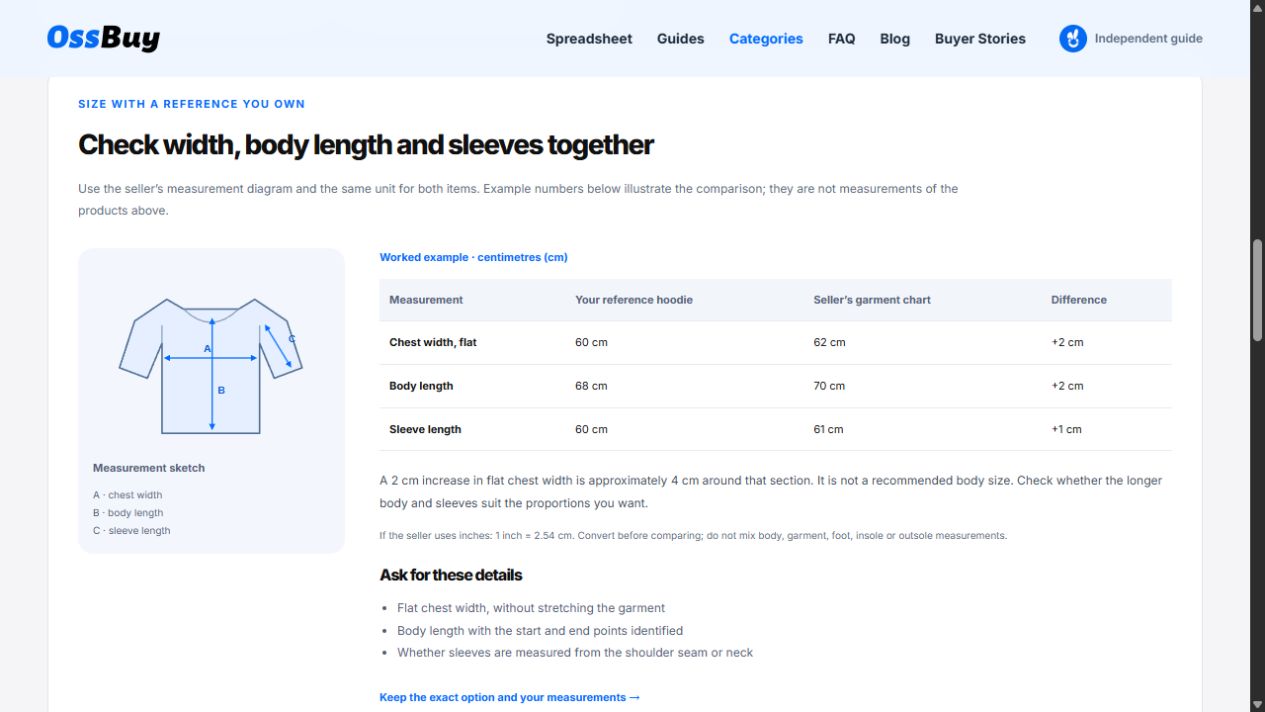

Use a category and one identifying search word, then apply an item-price budget. Save candidates, select two to compare, and check the exact option on MaisonLooks. The worked search below uses this site’s catalogue snapshot.
On this page · 9 sections
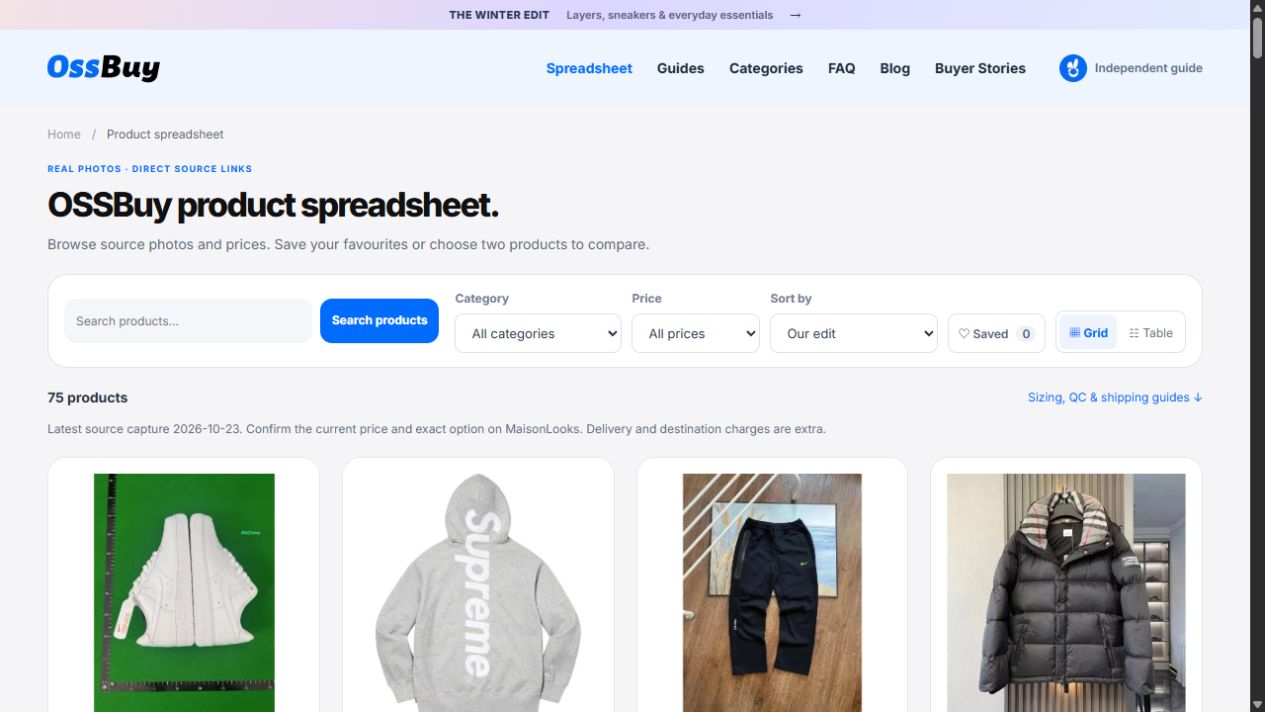
Start with a source listing
A product spreadsheet is useful when you can move from a photo to the exact listing and keep track of what still needs checking. On this site, start with the product spreadsheet. It contains source photos, observed prices and links to MaisonLooks. These are listing references: they do not establish current availability, authenticity, material quality or the fit of a selected size.
This walkthrough covers the controls you can use here. For the wider process from a seller link to warehouse checks, read the beginner’s buying checklist.
Narrow the list in two passes
- Choose a category first. Select Shoes, Hoodies & fleece, Pants & shorts or another category. This is usually more useful than searching the whole catalogue for a very broad word.
- Add one identifying word. Try a product type or a word in its title. Search works on the catalogue here; it does not search the wider MaisonLooks website or answer QC questions.
- Set a USD budget if needed. Under $25 filters the observed item price. Delivery, payment charges and destination costs are not included.
- Change the sort. Price sorting compares observed USD figures. It cannot tell you which item has the lowest complete order cost.
For example, open Shoes under $25 to start with that combination. The results can change when a catalogue update is approved; the filter itself is reusable. On a phone, tap Price & sort to reveal those controls. If nothing matches, remove the budget or search word before assuming the catalogue has no relevant products.
Worked search: find shoes under $25
Suppose your starting requirement is a shoe listing with an observed item price below USD 25. Set Category → Shoes and Price → Under $25, leaving the search box empty. This gives you a category-and-budget shortlist before you add a model word.
This catalogue snapshot has 3 shoe listings matching the category and price filter. Two examples are shown below. These are source records already used by the spreadsheet, with their original capture dates.
 Photo unavailable
Nike Air Force 1 White Sneakers
Shoes
$14.35 USDCaptured
View on MaisonLooks ↗ Photo unavailable
Nike Air Force 1 Triple Black Sneakers
Shoes
$14.53 USDCaptured
View on MaisonLooks ↗Source photos are catalogue references, not warehouse QC or product-test evidence. Each source opens MaisonLooks in a new tab.
Next, add a word such as white. The search checks words in product titles and category labels. It does not inspect the colours inside an image or discover synonyms across the web. If you mean a particular version, confirm its name and selected option at the source rather than relying on a similar photo.
The filter is strictly below USD 25: a USD 25.00 record belongs in the $25–$50 range. Entries without an observed USD amount are not treated as free or silently converted from another currency. A result passing this filter has met an item-price condition only; its shipping and selected-option quote still need checking.
Switch views for the job you are doing
Grid gives the photo more space, which helps when you are comparing shapes or colours. Table puts the same records into rows for scanning names, categories and prices. Neither view adds evidence about the physical item. Open the source to check the selected option, and request item-specific photos when needed.
The search, category, budget, sort and view are reflected in the spreadsheet URL. Keep that URL if you want to return to a particular search. Your private notes and saved-product list are not included in that shared filter link.
Save candidates, then compare only two
Tap Save on products you want to revisit, then use Saved to show your favourites. Product saves belong to this browser. They are separate from category bookmarks and do not create an account or a cloud backup. Clearing site storage can remove them.
Tap Compare on two products to open the comparison tray. The comparison workspace keeps source references apart from your own selected-option quotes, measurements and QC notes. A captured card price is not automatically a confirmed purchase quote. If you already have notes for a different pair, review the visible import choice before replacing anything.
| Keep | Why it helps |
|---|---|
| Exact listing and option | Similar photos can refer to different sizes, colours or versions. |
| Your reference measurements | A size label alone does not describe the fit you want. |
| Evidence still missing | Turn a vague concern into a specific question for the seller or agent. |
| Quote date and all charges | A cheaper card price does not establish a cheaper delivered order. |
Why does the spreadsheet show no results?
| What you see | Likely check | Useful next step |
|---|---|---|
| No matches after a new search | The category, price and all search words apply together. | Remove the newest restriction; try the product type without a model or colour word. |
| Saved view is empty | You may have no product saves in this browser, or active filters exclude them. | Turn off Saved first; check the category and budget before saving the item again. |
| An item is visible in Grid but a detail is hard to scan | Grid and Table use the same catalogue records. | Switch to Table for names and prices; the view does not add missing source information. |
| Photo unavailable | The external image may be slow, blocked or removed. | Use the product title and exact source link. Do not infer removal from a single loading failure. |
| The source price differs | The observed price, selected option or current listing may differ. | Record the current option and quote date separately; use that quote for a cost comparison. |
If your filter is too specific, opening the full product spreadsheet is a useful reset. A search across this local catalogue is different from asking whether an item exists anywhere on MaisonLooks.
Which link should you keep for the next step?
There are three different references worth distinguishing: the spreadsheet’s filter URL, the MaisonLooks discovery listing and any original seller or agent order link provided at the destination. Saving a filter URL preserves the search criteria. It does not identify a selected size, colour or version.
Open the product’s MaisonLooks listing in its separate tab. Confirm the title, option and available source information there. If you intend to order through an agent, use the original seller URL and ordering instructions actually provided; do not assume a MaisonLooks discovery URL can be pasted into every agent checkout.
A listing-details request
I am comparing [listing link], option [size / colour / version]. Please confirm the current item price and currency, the original seller link if available, the measurement chart for that option, and any information that is missing before ordering.
Keep a record of the exact link you checked and the date of your quote. If the option is unclear, mark it as unresolved in the comparison notes. A well-organised shortlist should show what you know and what you still need to ask.
Open the source with your checklist ready
Use the category checklists for dimensions and the QC guide for item-specific photo requests. When the uncertainty is the complete order cost, continue with the worked cost comparison. These checks use different evidence; a low item price cannot answer a sizing question.
Saved finds, shared links and spreadsheet access
How do I save OSSBuy finds on this site?
Use the product’s Save button and return through Saved in the spreadsheet. The saved identifiers belong to this browser’s local storage. A category bookmark is a separate feature.
Can I share my filtered spreadsheet with someone else?
Share the URL after setting the filters. It carries the search, category, budget, sort and view. It does not carry your saved list, comparison notes or private quotes. Test the link in a fresh tab if you need to check which filters it restores.
Do I need Google Sheets or a paid account to browse?
This spreadsheet is a web catalogue with Grid and Table views. Browsing and its local save/compare tools do not require a Google Sheets account. It is not an editable shared Google workbook.
Can I recover my saved products on another device?
There is no account sync. Keep source links and export useful comparison notes as CSV before clearing browser storage. A filter link restores criteria rather than recreating private notes.
Put it into practice
Try the product spreadsheet →Editorial note: this article documents this site’s tools, source records and labelled educational examples. It is not a buyer review or a report of product testing. See how this independent guide works.